
 Made in China
 Made in Vietnam
 Made in US
 2026 Case List
How it works

Save time and Delivery orders faster with PGPrints automatic process!
-
Connect your Amazon store
Process this Step once per 1 store, not for every orders
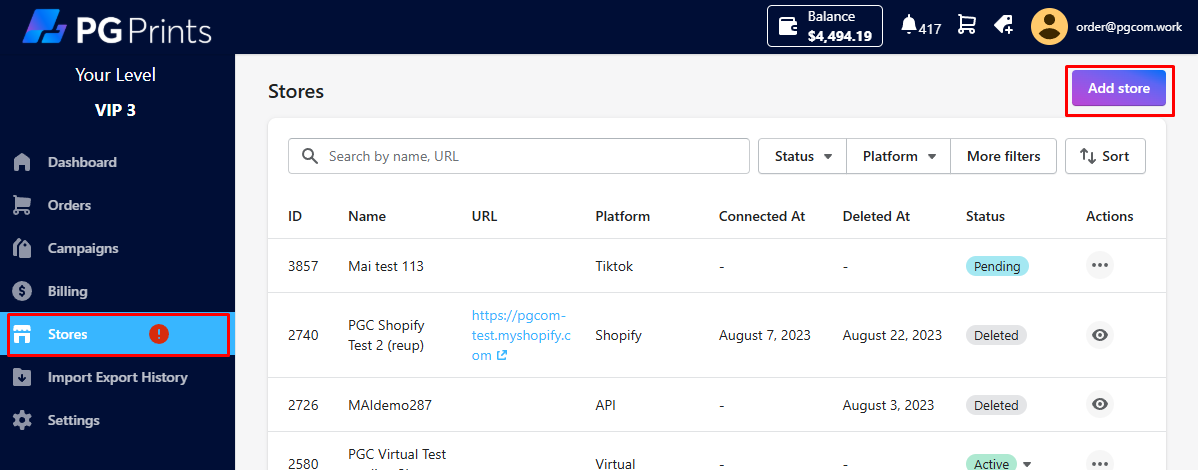
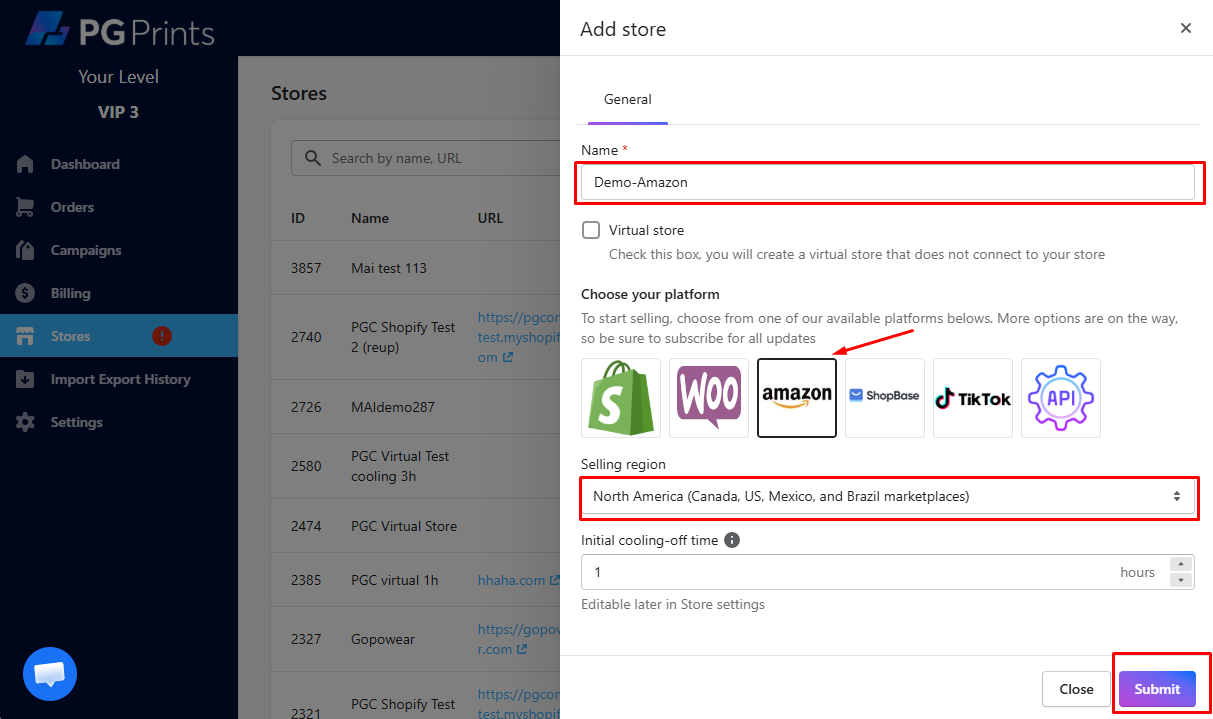
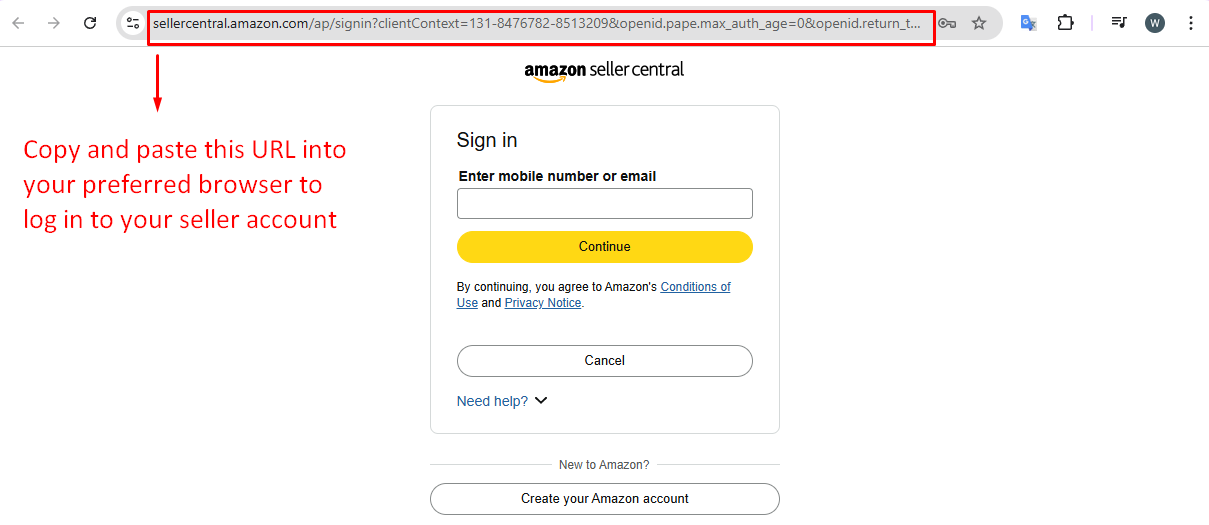
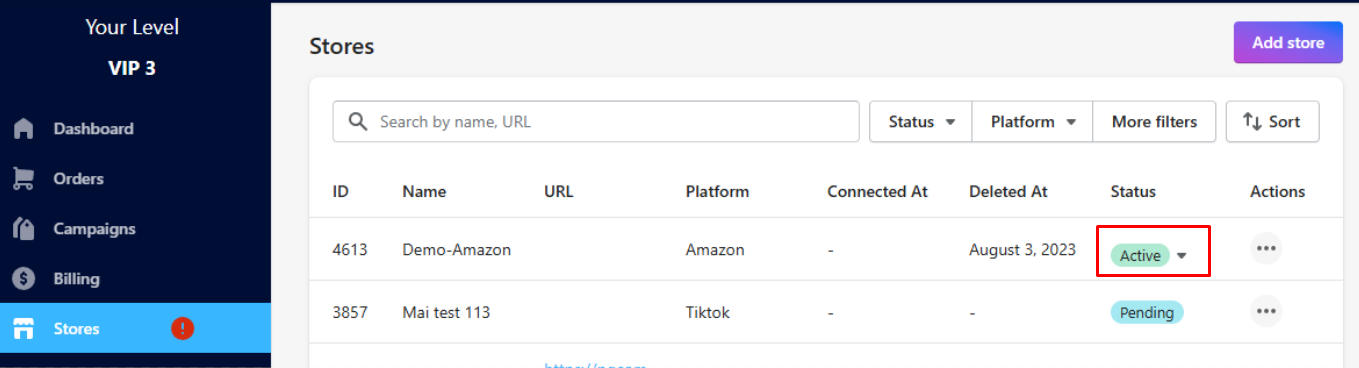
==> Follow next instructions to authorize PGPrints to get your account’s orders information then back to app.pgprints.io/stores, check status of the store:
-
Check and fill full address if needed
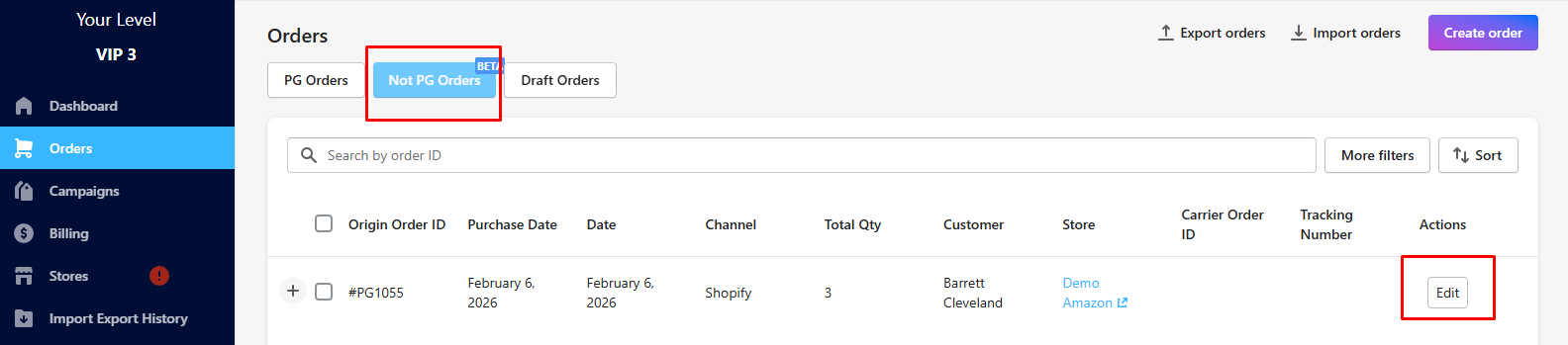
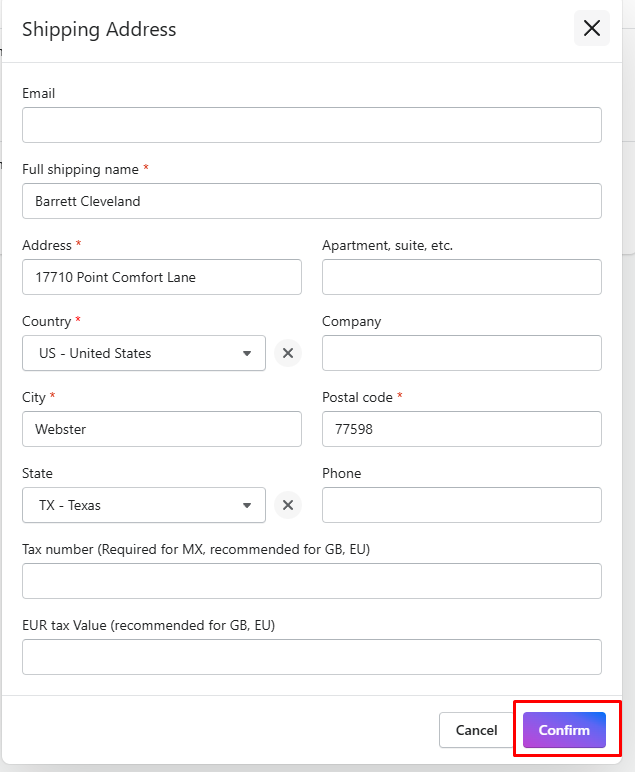
Amazon integration is now on beta only, we have not been able to crawl full address from Amazon, so please double check the address and fill the full if neededClick tab “Not PG Orders” => Edit Order => Edit Address => Confirm
-
Map Orders’s Items with Catalog or Campaigns
-
-
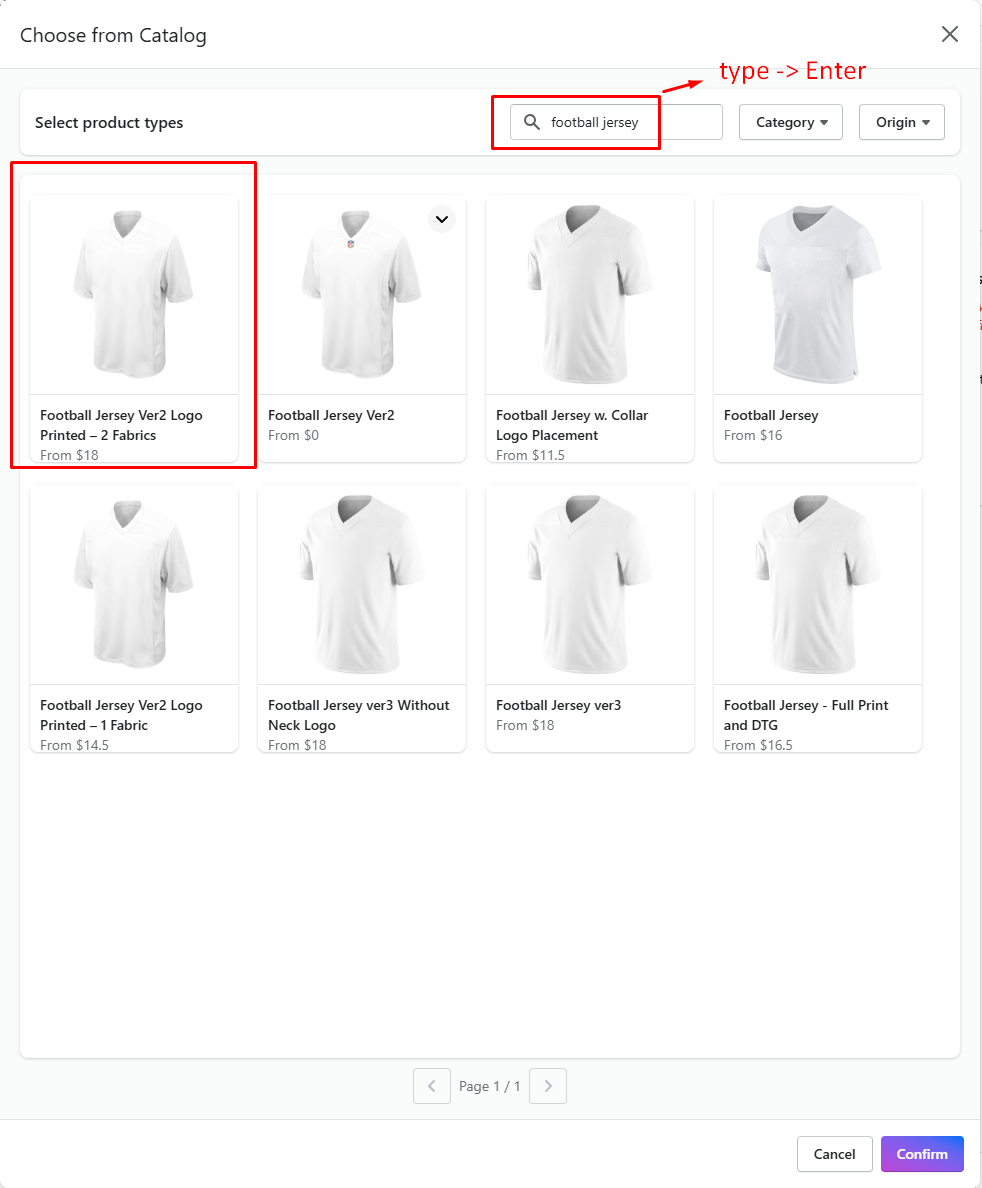
Map with Catalog (create new product for this order only)
Click button “Choose from Catalog” -> Search product type name -> Choose one variant -> Confirm
Turn on “Save this mapping”: All order with the current variant’s Seller SKU will be automatically mapped like this time in the future
Turn off “Save this mapping”: Each time this Seller SKU has an order in your online store, you have to map it again => Apply when your design is customized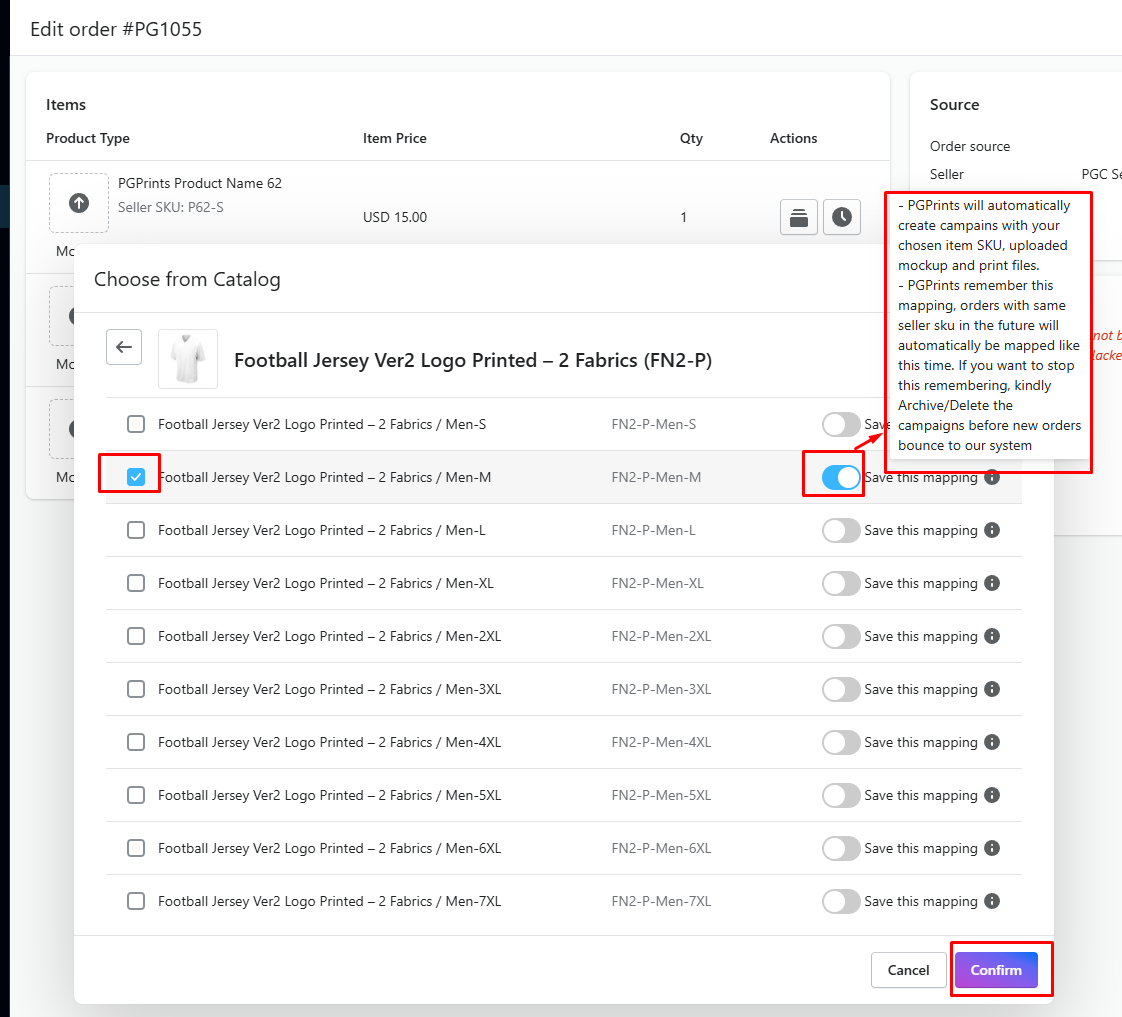
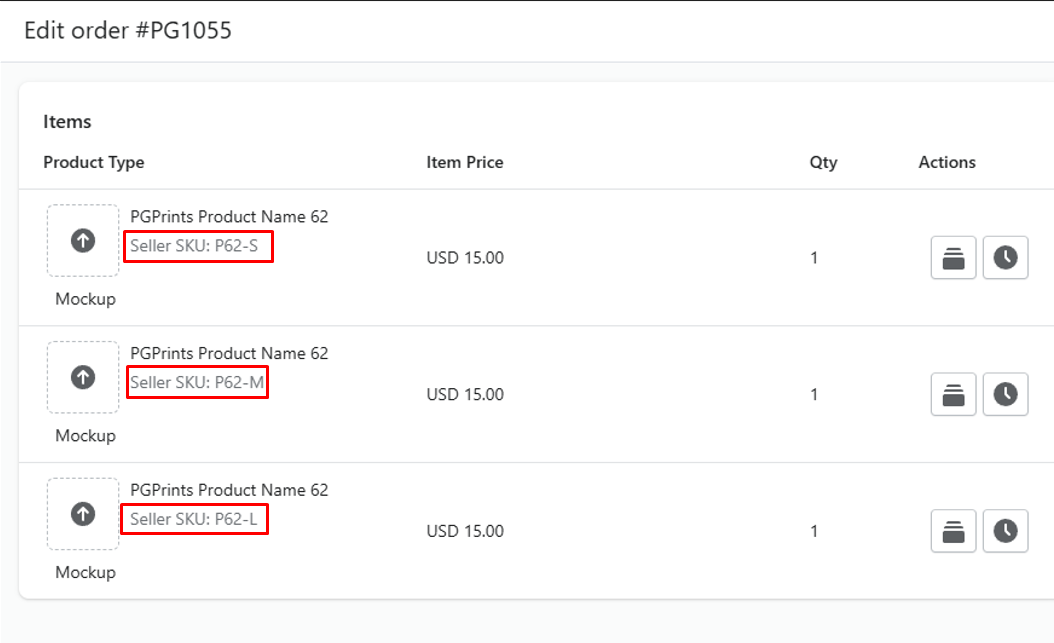
Here the Seller SKU appears
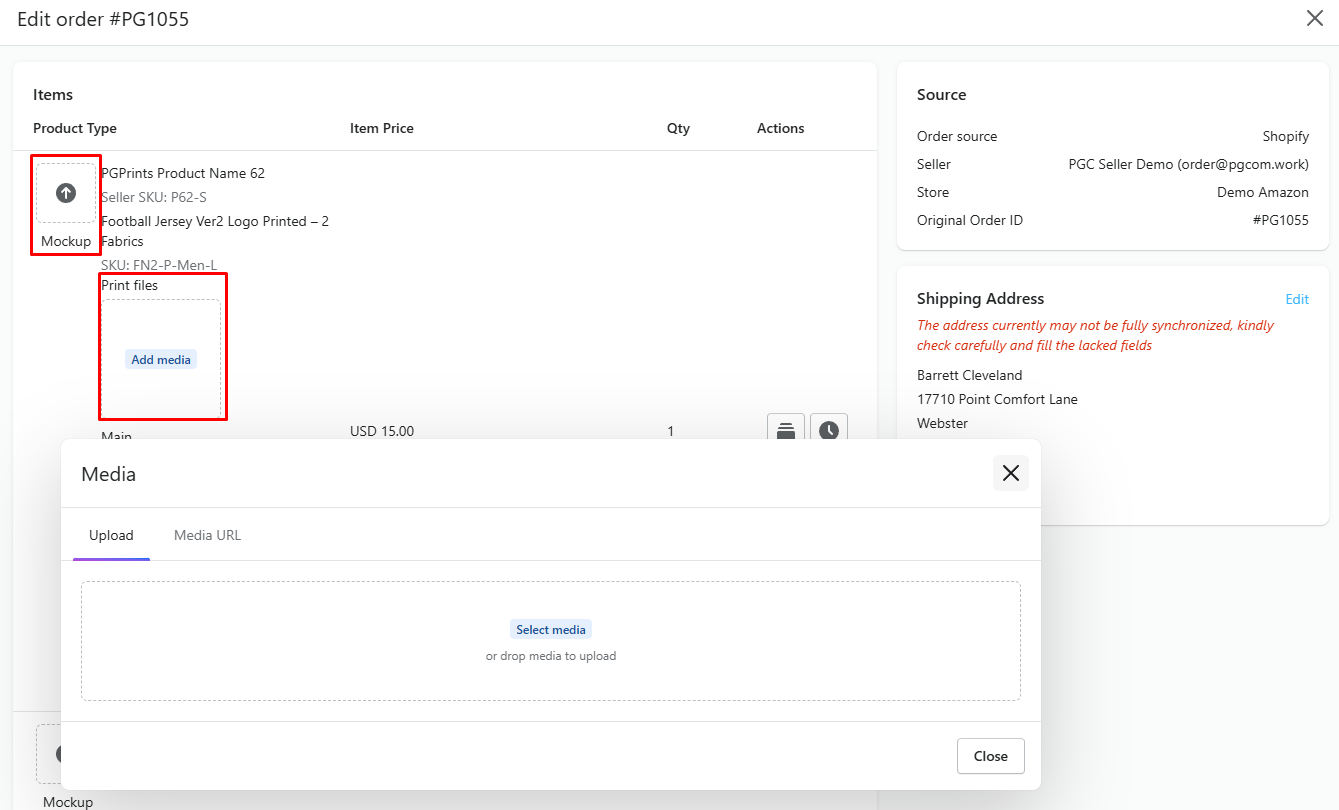
Upload Design and mockups:
-
Map with Campaigns (choose products from created campaigns)
-
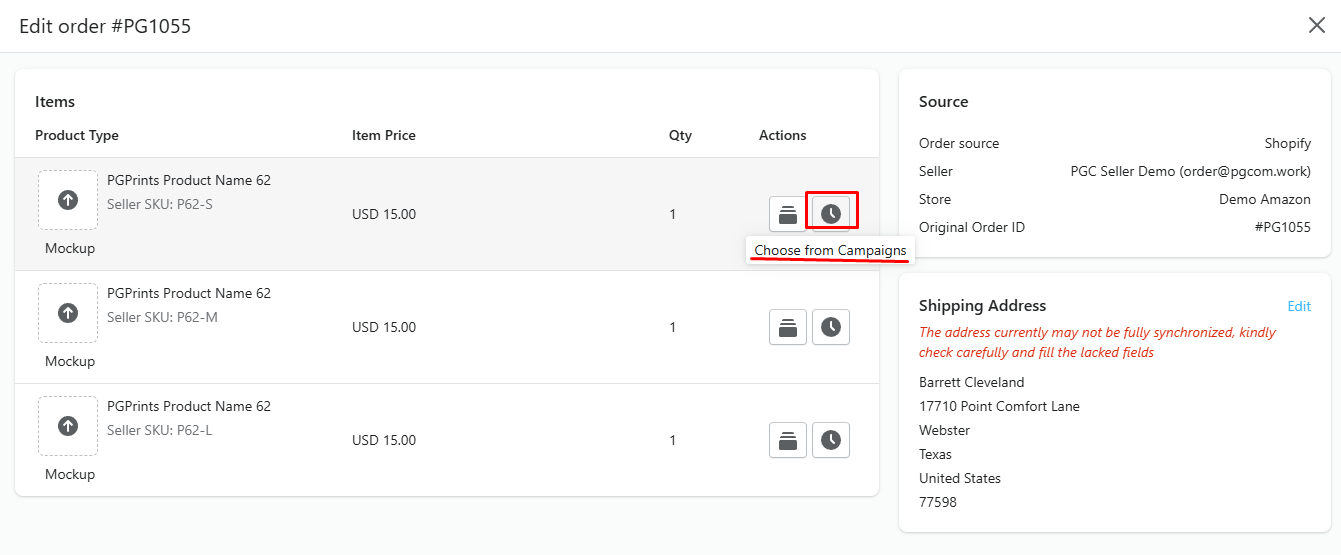
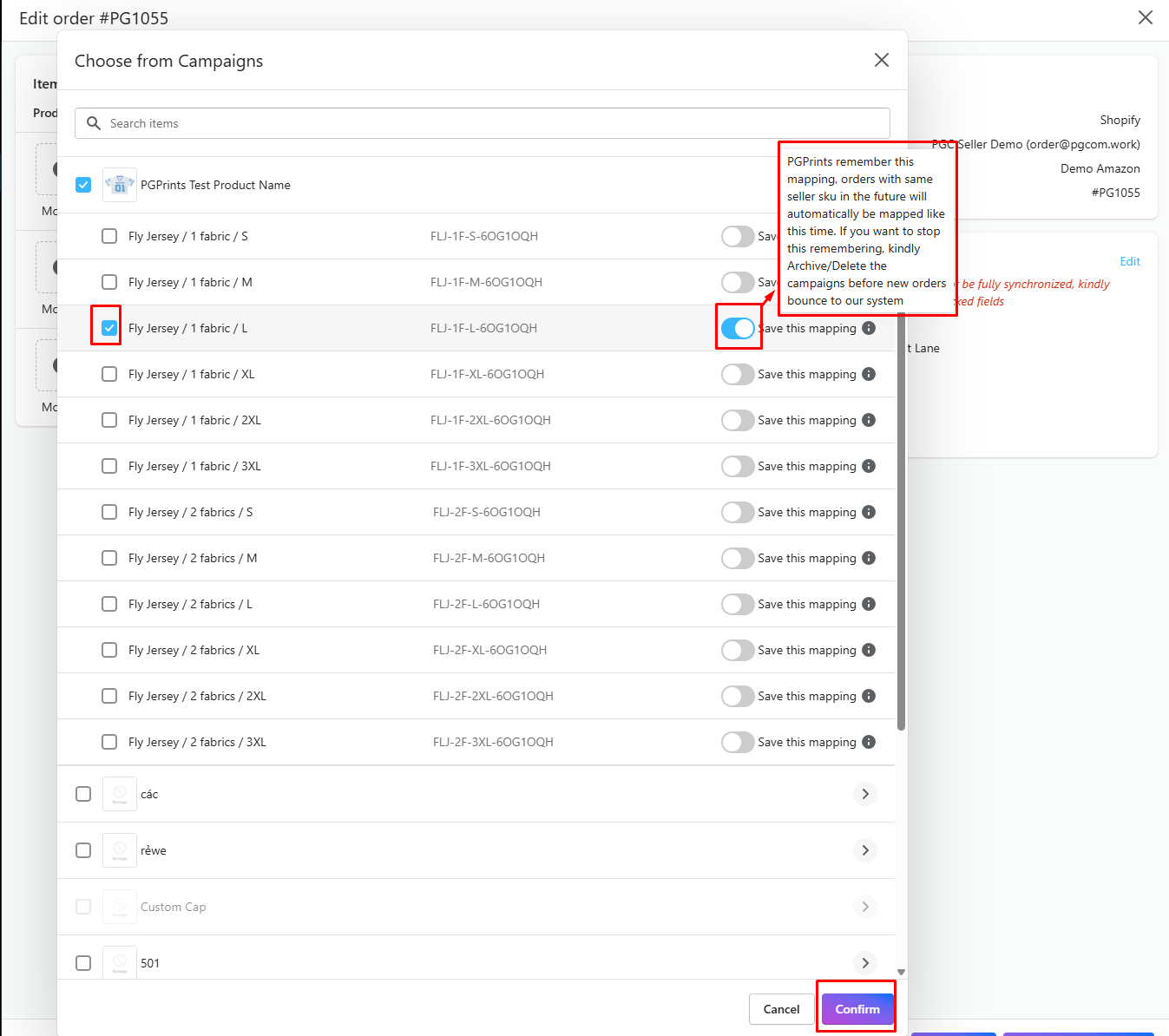
Click button “Choose from Campaigns” -> Search product type name -> Choose one variant -> Confirm
Turn on “Save this mapping”: All order with the current variant’s Seller SKU will be automatically mapped like this time in the future
Turn off “Save this mapping”: Each time this Seller SKU has an order in your online store, you have to map it again => Apply when your design is customized
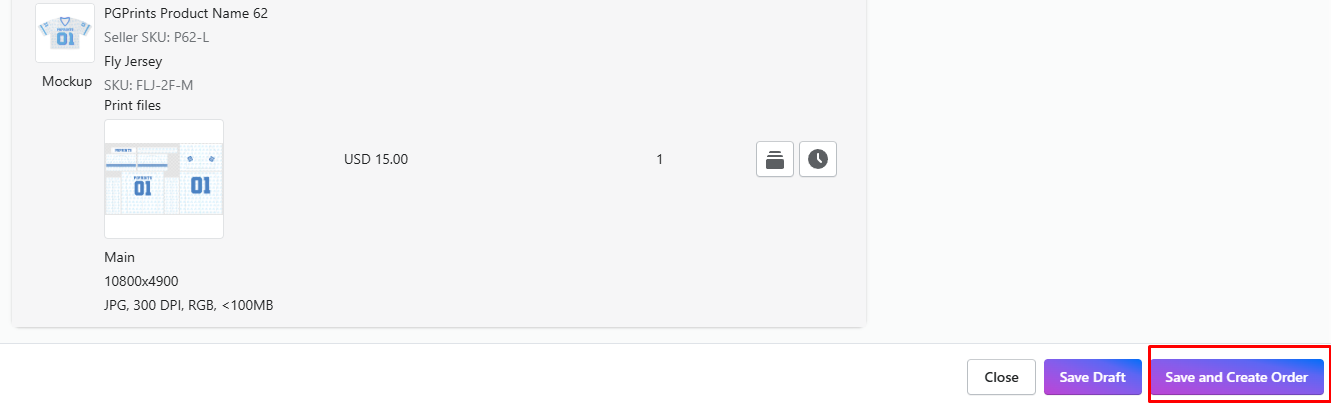
Here the Seller SKU appears
Upload Design and mockups:
D. Save Orders and review
Save and Create Order -> Turn back to tab “PG Orders” to review the last time
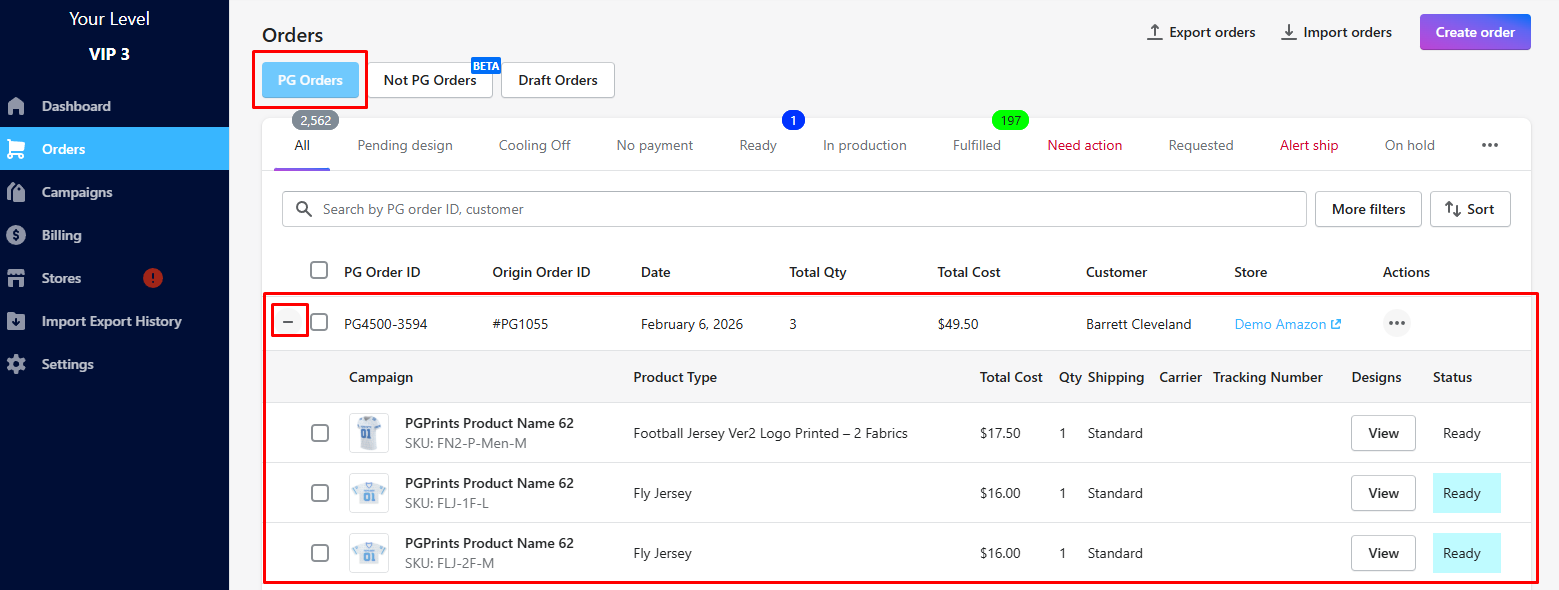
Please make sure all information is correct and your balance is sufficient for system to automatically charge then process your orders